Getting Your Hetzner API Token
Learn how to create a Hetzner Cloud project and generate an API token for Sproobo
To connect Sproobo to your Hetzner Cloud account, you'll need to create an API token. This token allows Sproobo to provision and manage servers on your behalf.
Your API token provides full access to your Hetzner Cloud account. Keep it secure and never share it publicly. Sproobo encrypts and stores your token securely.
Creating a Hetzner Cloud Project
Before generating an API token, you should create a project to organize your resources. Projects help you separate different environments or applications.
- 1
Navigate to Projects
In your Hetzner Cloud console, click on "Projects" in the top navigation bar.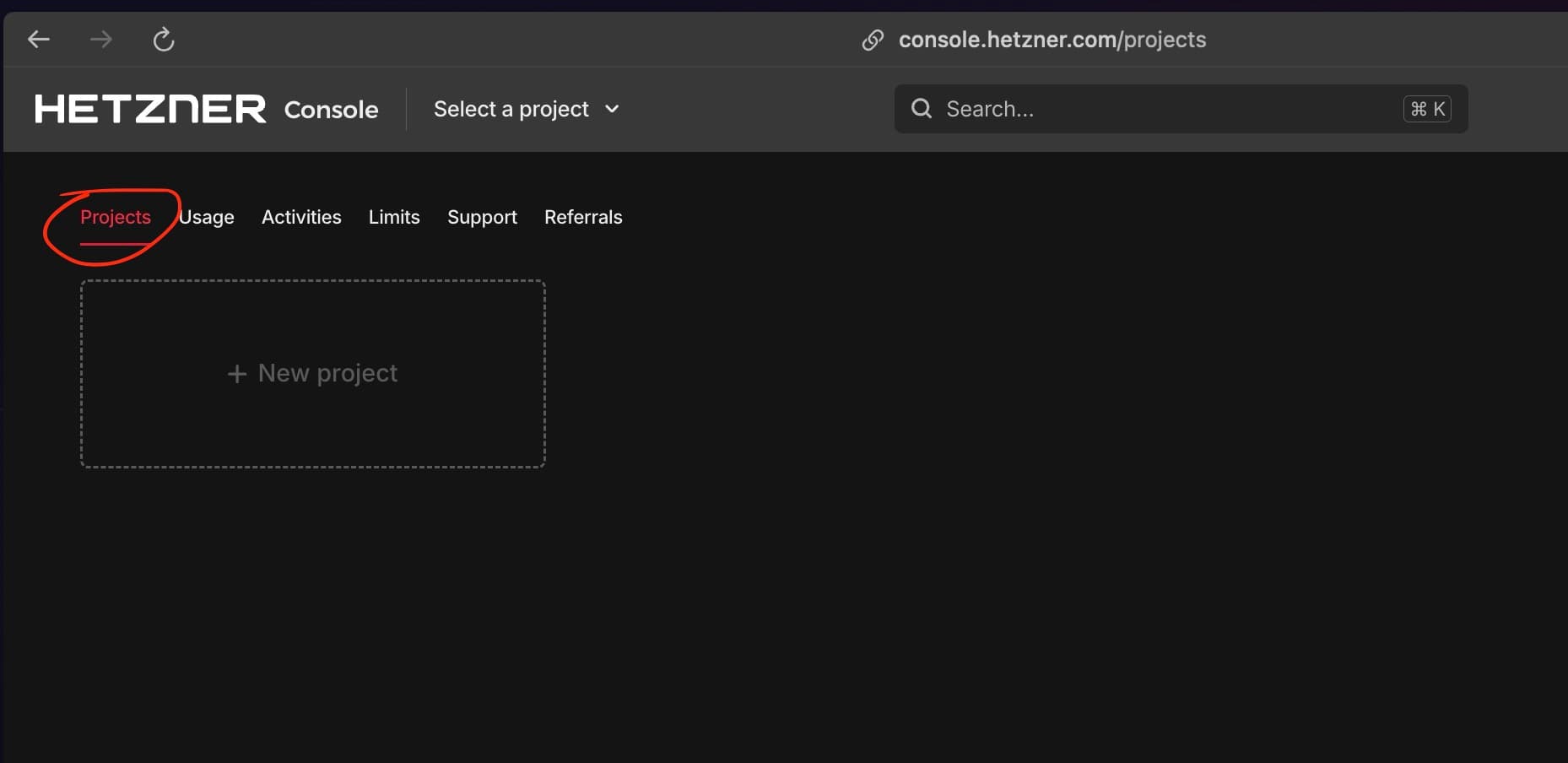
Click on Projects in the Hetzner Cloud console navigation. - 2
Create a New Project
Click the "Create Project" or "New Project" button. You'll be prompted to:
- Enter a project name (e.g., "Production", "Staging", "Development")
- Choose a project color for easy identification in the UI
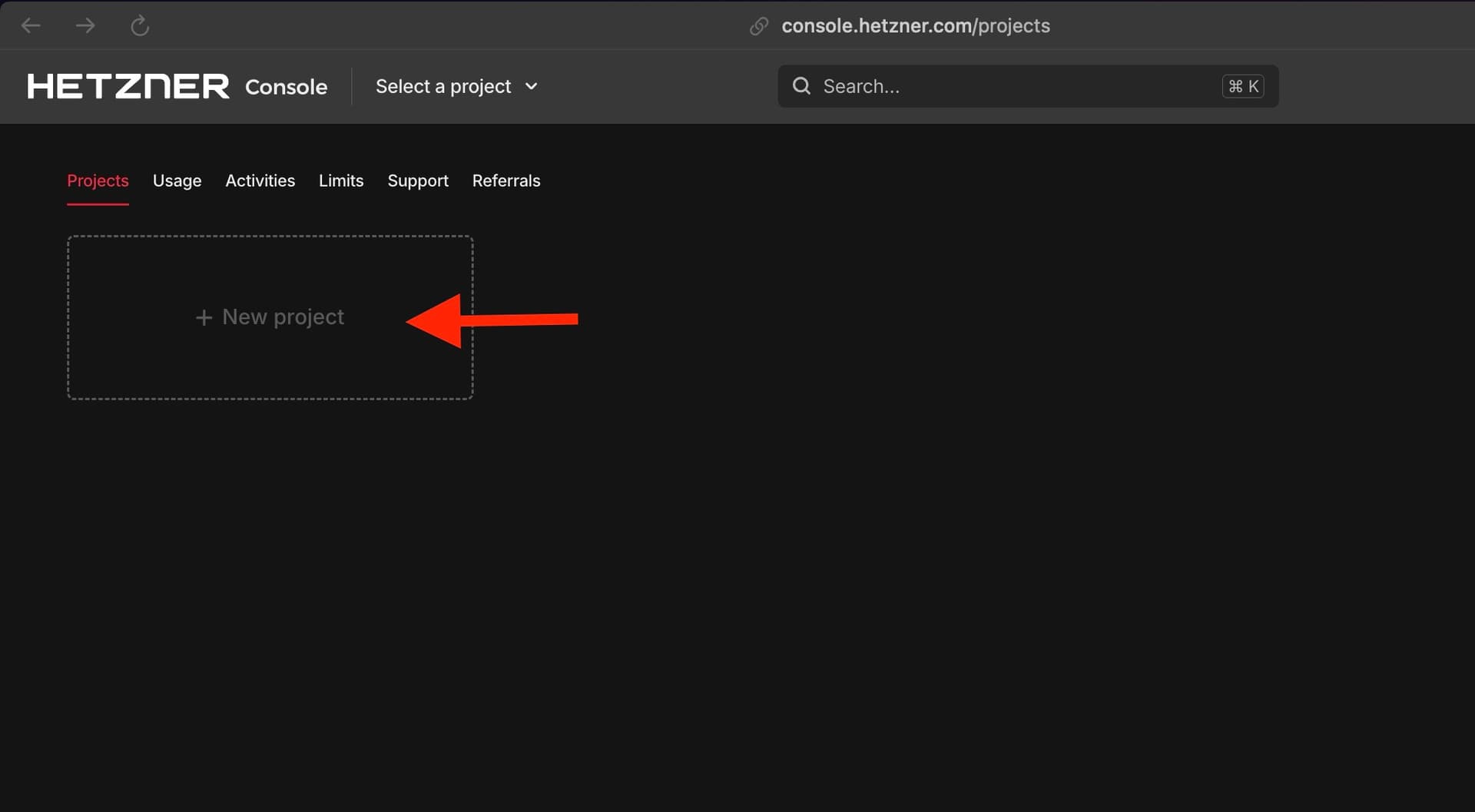
Create a new project with a descriptive name and color. - 3
Select Your Project
After creating the project, make sure it's selected as your active project. You can switch between projects using the project selector in the top navigation.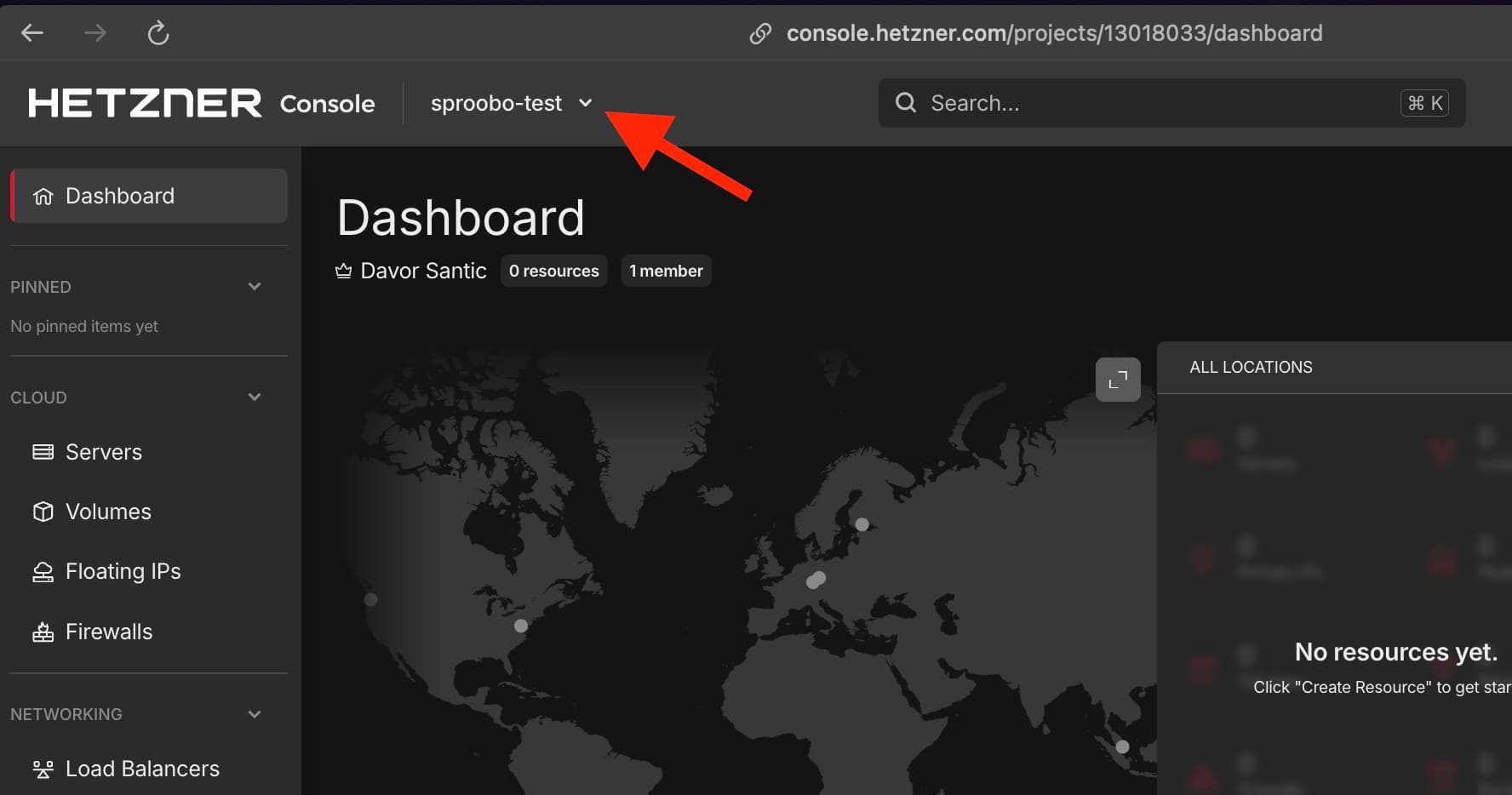
Ensure your newly created project is selected as the active project.
Generating Your API Token
Now that you have a project set up, you can generate an API token that Sproobo will use to manage your infrastructure.
- 1
Access API Tokens
Navigate to your project settings by clicking on your project name, then go to:Security → API Tokens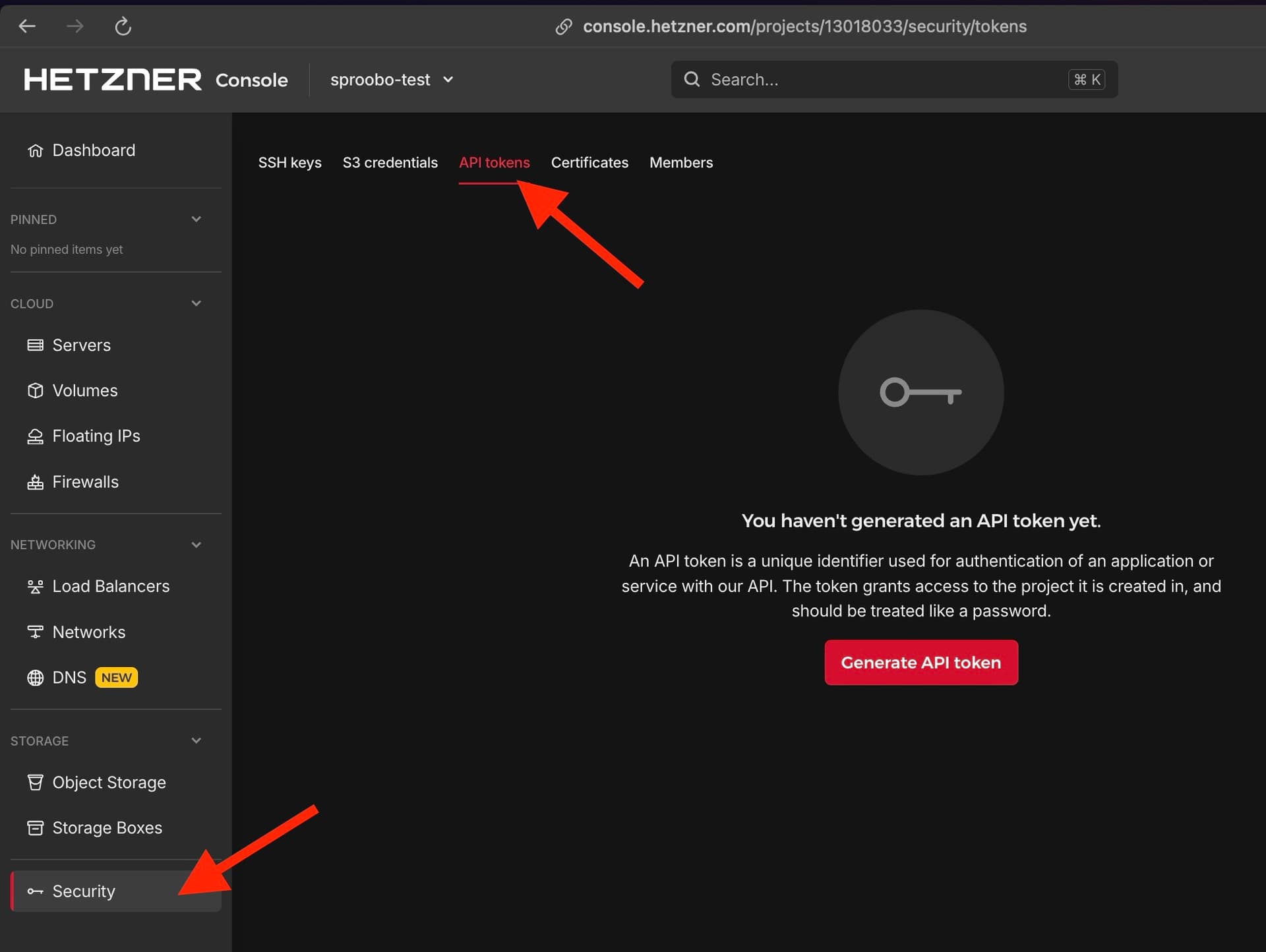
Navigate to Project Settings → API Tokens in your Hetzner Cloud console. - 2
Generate a New Token
Click the "Generate API Token" button. You'll see a form where you can configure your token:
Description: Enter a descriptive name like "Sproobo Integration"
Permissions: Select "Read & Write" (required for Sproobo to manage your servers)
IP Restriction: Leave blank (Sproobo uses secure, rotating IPs)
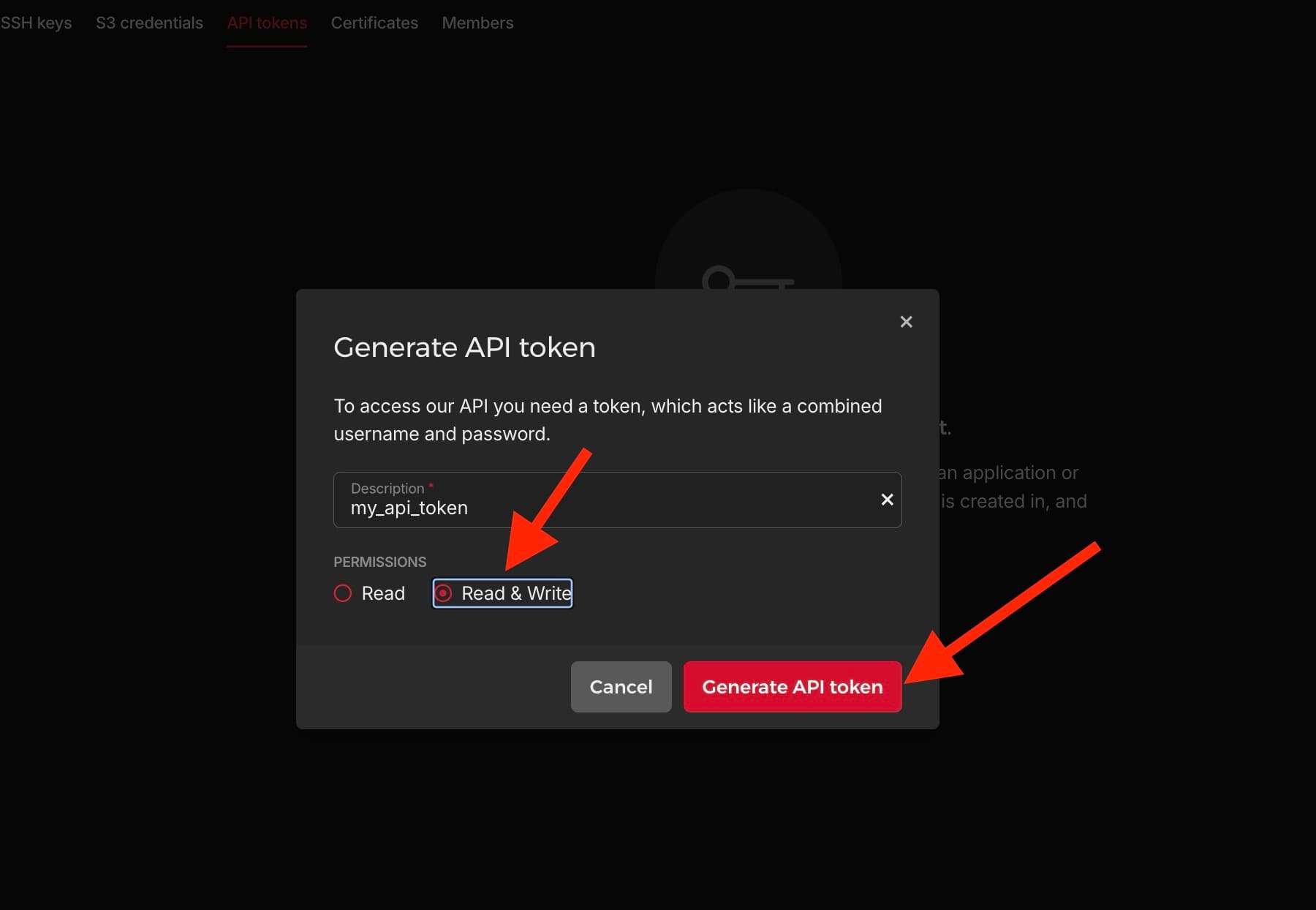
Configure your API token with a description and Read & Write permissions. - 3
Copy Your Token
Important: Hetzner will only show your token once. Copy it immediately and store it securely. You won't be able to see it again.
✕If you lose your token, you'll need to revoke it and generate a new one. Make sure to copy it now!
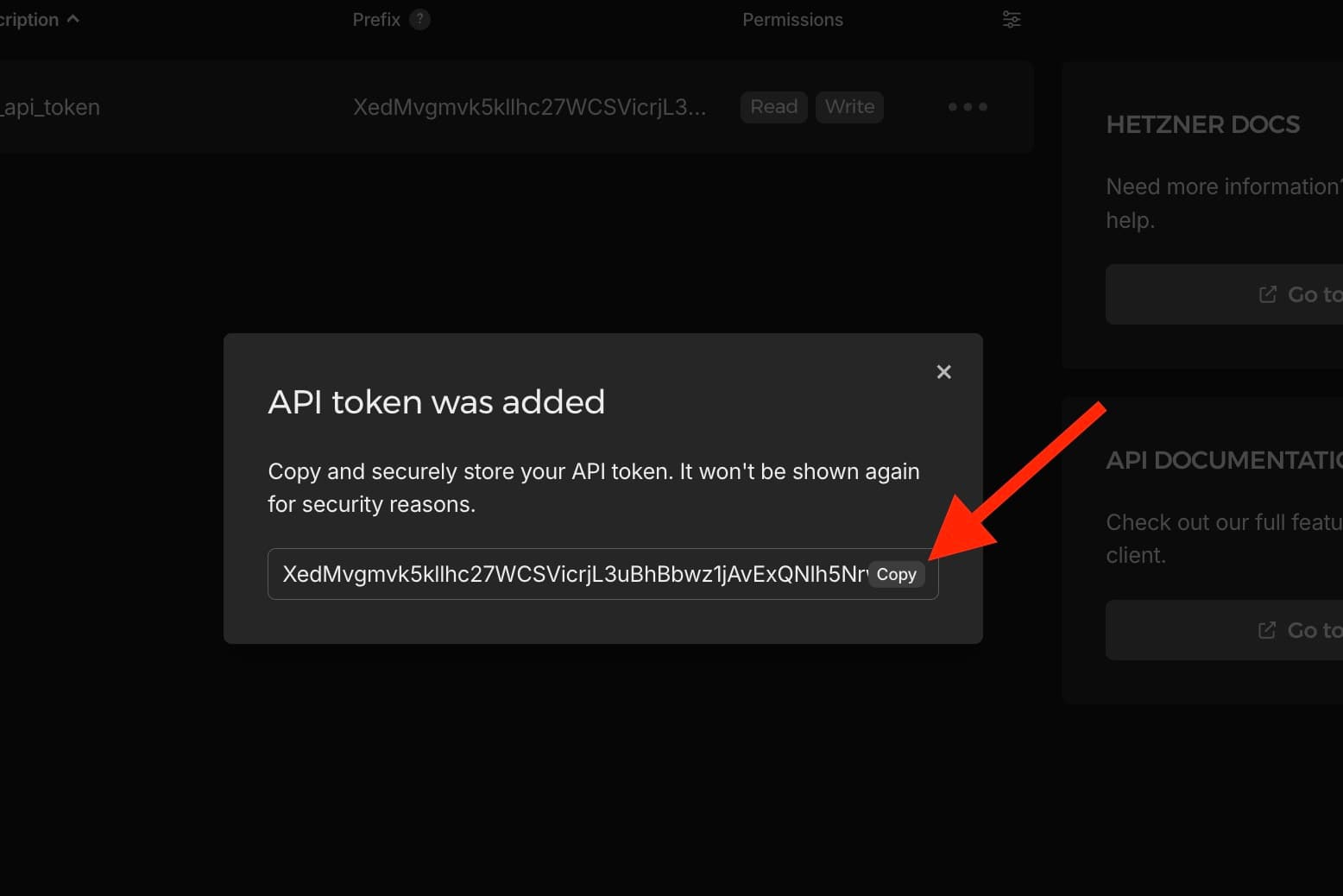
Copy your API token immediately - you won't be able to see it again after closing this dialog. - 4
Verify Token Permissions
Make sure your token has "Read & Write" permissions. This is required for Sproobo to:- Create and manage servers
- Configure firewalls and networking
- Set up SSH keys
- Manage load balancers and volumes
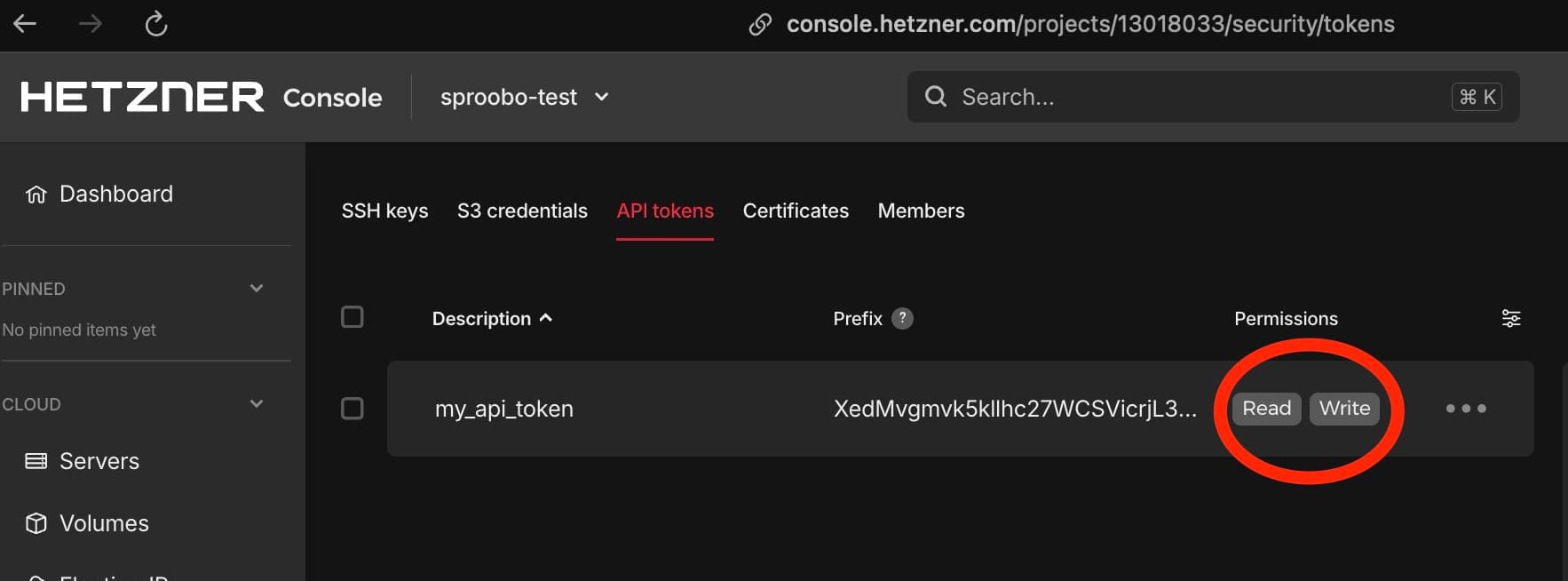
Verify that your token shows 'Read & Write' permissions in the tokens list.
Security Best Practices
Security Tips
- Never commit your API token to version control
- Don't share your token in public forums or support channels
- Use separate tokens for different projects or environments
- Rotate your tokens regularly (every 90 days recommended)
- Revoke tokens immediately if you suspect they've been compromised
Revoking a Token
If you need to revoke a token (for security reasons or if you lost it):
- 1
Go to API Tokens
Navigate back to Project Settings → API Tokens. - 2
Revoke the Token
Find the token you want to revoke and click the "Revoke" button. This will immediately invalidate the token.
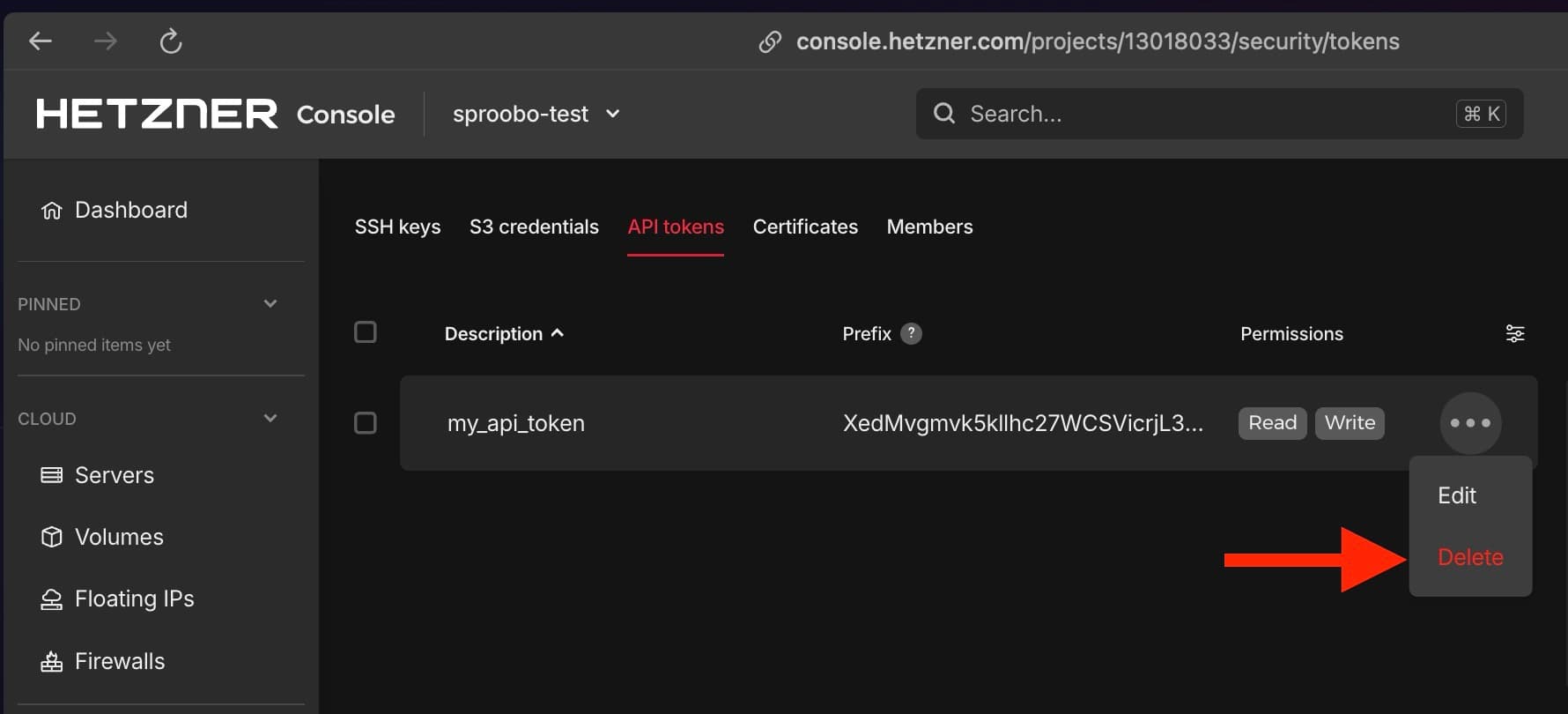
Click Revoke next to the token you want to invalidate. - 3
Generate a New Token
If needed, generate a new token following the same steps above.
What's Next?
Now that you have your Hetzner API token, you're ready to create your first project and connect your token:
Next: Creating Your First Project →
You'll connect your Hetzner API token during project creation in the Advanced Options section. You can also add it later in project settings if you prefer.