Skip to content

Creating Projects

Step-by-step guide to creating and configuring projects in Sproobo

Creating a project is the first step to organizing your deployments. This guide will walk you through creating your first project in Sproobo.

Prerequisites

Before you can create a project, you need an active subscription. If you don't have a subscription yet, you can start with our 7-day free trial.

⚠️

Subscription Required: You need an active subscription to create projects. If you see an error message "You need a subscription to create projects. Start with our 7-day free trial!", you'll need to start a subscription first.

Starting Your Subscription

To create your first project:

  1. Navigate to the Pricing page from your dashboard or main navigation
  2. Select a plan that fits your needs (Forge, Orbit, or Apex)
  3. Click "Start Free Trial" to begin your 7-day free trial
  4. Once your subscription is active, you can create projects

Available Plans

  • Forge: €9/month - For solo builders (2 projects, 1 Hetzner account)
  • Orbit: €25/month - For teams (10 projects, 3 Hetzner accounts)
  • Apex: €69/month - For scale-ups (Unlimited projects and accounts)

All plans include a 7-day free trial. No credit card required to start.

For more information about subscription management, see Subscription Management →.

  1. 1

    Navigate to Projects

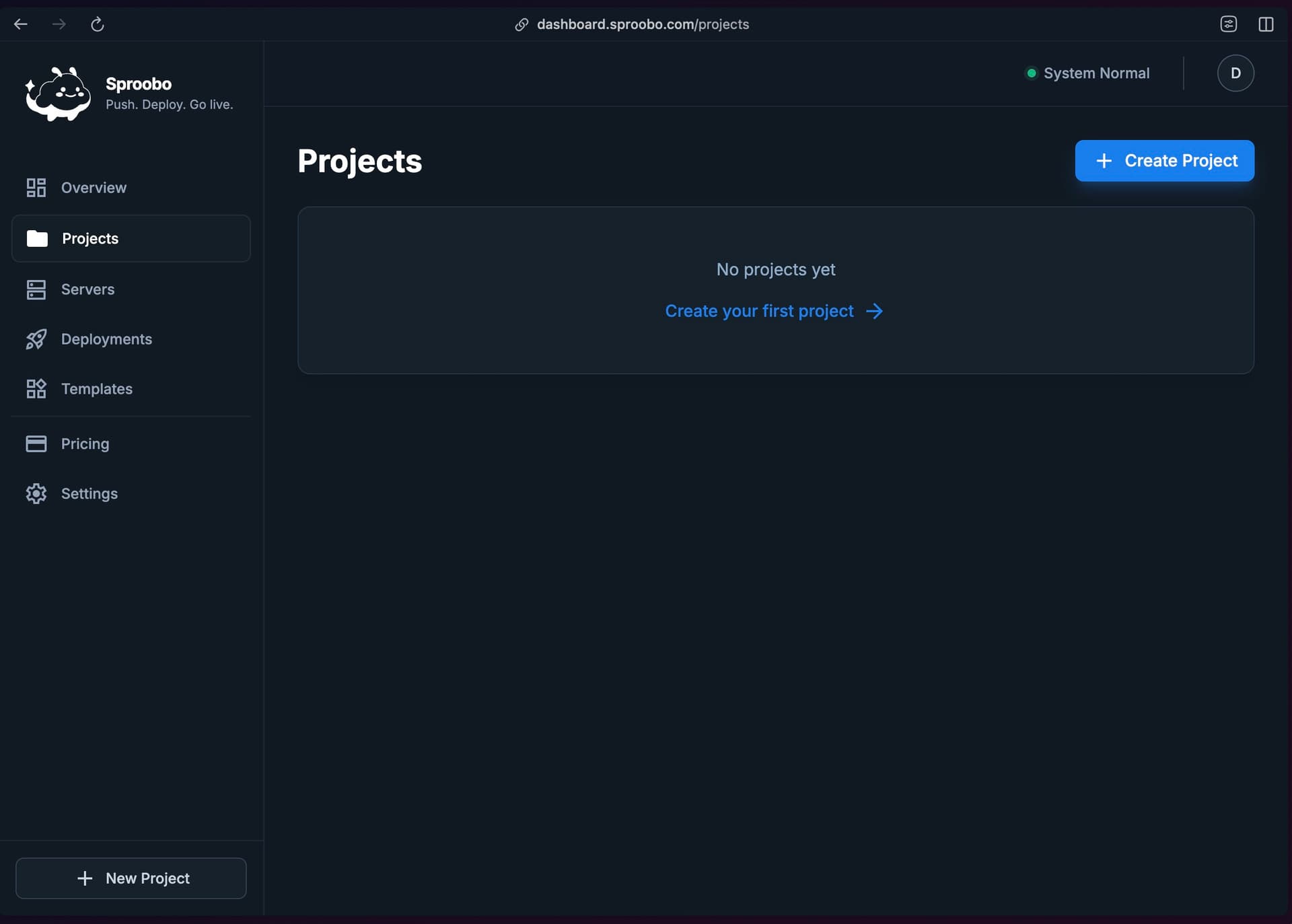
    In your Sproobo dashboard, click on "Projects" in the main navigation. If you don't have any projects yet, you'll see an empty state with a "Create Project" button.
    Sproobo Projects page showing empty state
    Navigate to the Projects page from the main dashboard navigation.
  2. 2

    Click Create Project

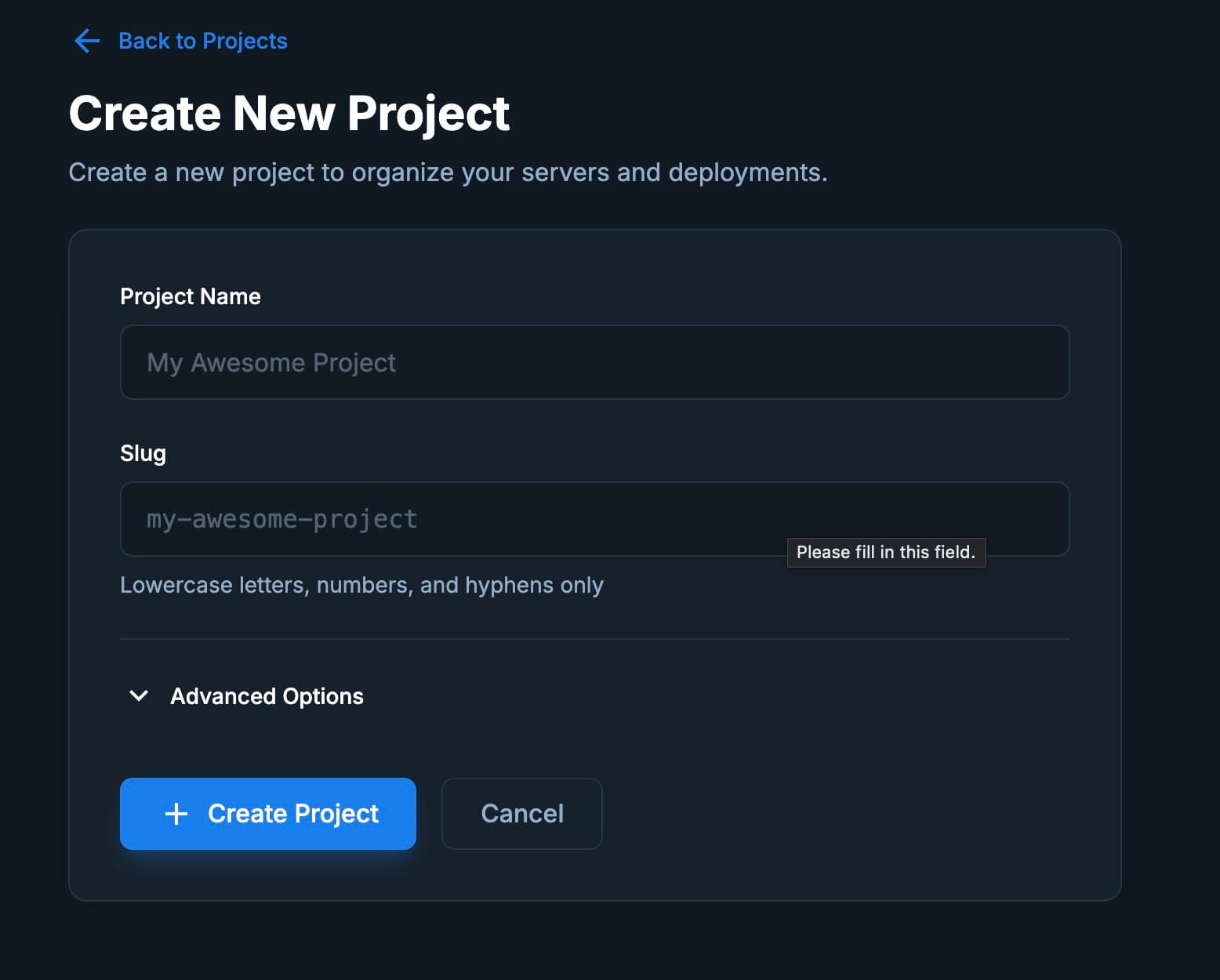
    Click the "Create Project" or "New Project" button. This will open the project creation form.
    Sproobo Create Project button and form
    Click Create Project to start the project creation wizard.
  3. 3

    Connect Hetzner API Token (Optional)

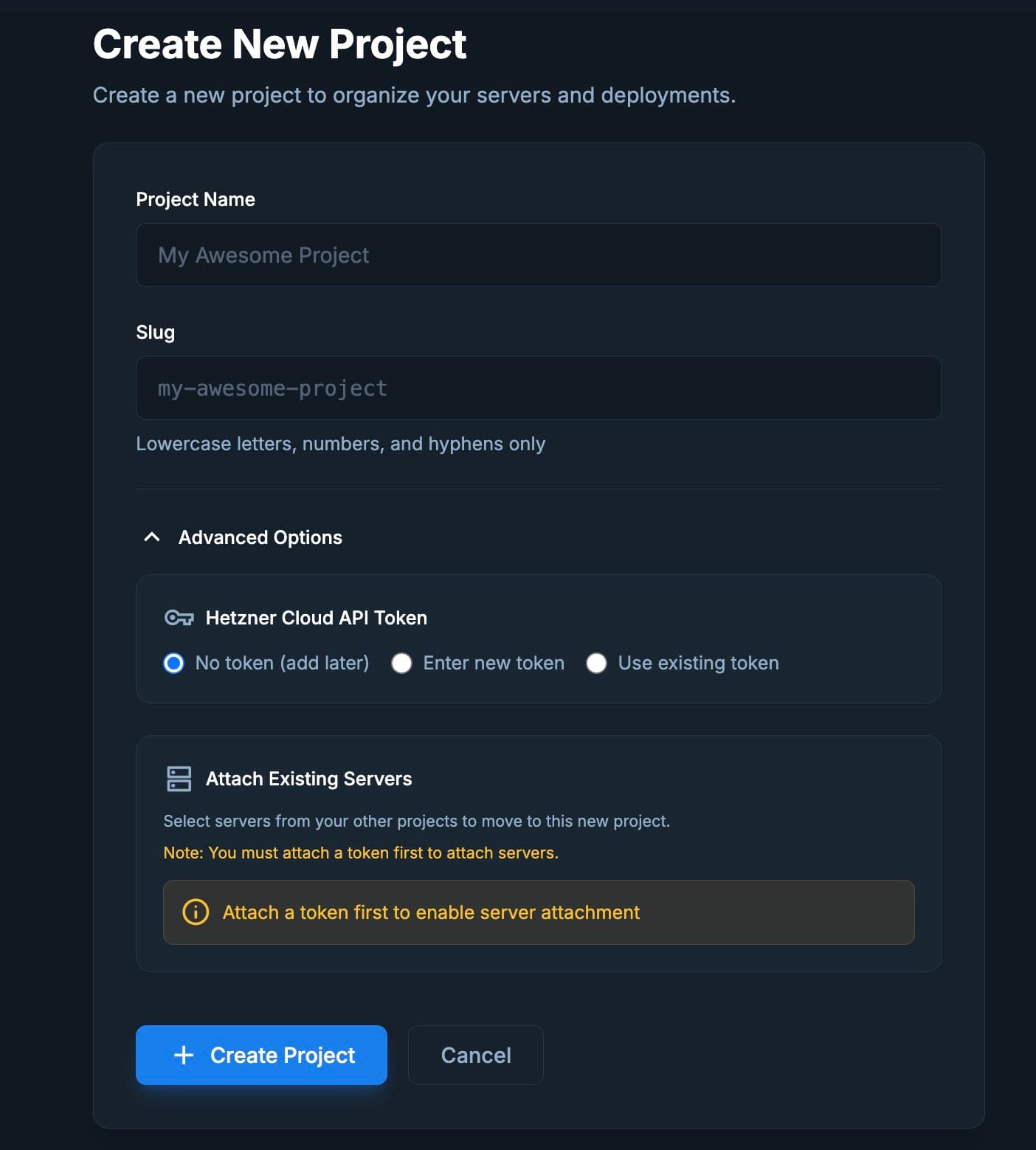
    You can connect your Hetzner Cloud API token during project creation or add it later. Click "Advanced Options" to expand the token configuration section.
    Sproobo project creation form with Advanced Options
    Click Advanced Options to reveal the Hetzner token configuration.
    In Advanced Options, you'll see three options for Hetzner Cloud API Token:
    • No token (add later): Create the project without a token. You can add one later in project settings.
    • Enter new token: Connect a new Hetzner API token to this project.
    • Use existing token: Select a token that's already connected to another project.

    Connecting a New Token

    If you choose "Enter new token", paste your Hetzner Cloud API token in the field provided. Sproobo will:
    • Encrypt your token using AES-256 encryption before storing it
    • Validate the token by making a test API call to Hetzner
    • Verify the token has read & write permissions (required for provisioning)
    • Check available regions and server types

    Security Note: Sproobo uses end-to-end encryption for all stored credentials. Your token is only decrypted in memory when making API calls to Hetzner, and it's never logged or exposed in our systems.

    Using an Existing Token

    If you have multiple projects and want to reuse a token, select "Use existing token" and choose from the dropdown list of tokens connected to your other projects.

    Token Validation

    When you create the project with a token, Sproobo automatically validates it by:
    • Testing the token format and permissions
    • Verifying read access to your Hetzner projects and servers
    • Confirming write permissions (required for server provisioning)
    • Checking available regions and server types

    Troubleshooting

    • Invalid token: Make sure you copied the entire token correctly
    • Wrong permissions: Token must have "Read & Write" permissions in Hetzner
    • Token revoked: Check if the token was revoked in Hetzner console
    • Network issues: Ensure your browser can reach Hetzner's API

Managing Tokens After Project Creation

If you didn't connect a Hetzner token during project creation, or need to manage tokens later:

  1. Navigate to your project dashboard (click on your project from the Projects page)
  2. Find the Hetzner Cloud Token section on the project page
  3. You can connect a new token, use an existing token from another project, or disconnect tokens
ℹ️

You'll need a connected Hetzner token before you can provision servers or deploy applications. You can add it during project creation or later on your project dashboard.

Troubleshooting

Subscription Required Error

If you see an error message when trying to create a project:

"You need a subscription to create projects. Start with our 7-day free trial!"

This means you need an active subscription to create projects. To resolve this:

  1. Navigate to the Pricing page
  2. Select a plan (Forge, Orbit, or Apex)
  3. Click "Start Free Trial" to begin your 7-day free trial
  4. Once your subscription is active, you can create projects

Project Limit Reached

If you see a message about reaching your project limit:

"You've reached your project limit (X/X). Upgrade to create more projects."

Your current plan has a project limit. To create more projects, upgrade to a higher tier plan:

  • Forge: 3 projects maximum
  • Orbit: 10 projects maximum
  • Apex: Unlimited projects

Go to Pricing to upgrade your plan.

Next Steps

Now that you have a project, you can: