Provisioning Servers
Step-by-step guide to provisioning and configuring servers in Sproobo
Provisioning a server in Sproobo is simple and automated. This guide will walk you through creating your first server.
- 1
Navigate to Servers
In your project dashboard, click on "Servers" in the sidebar or navigate to Project → Servers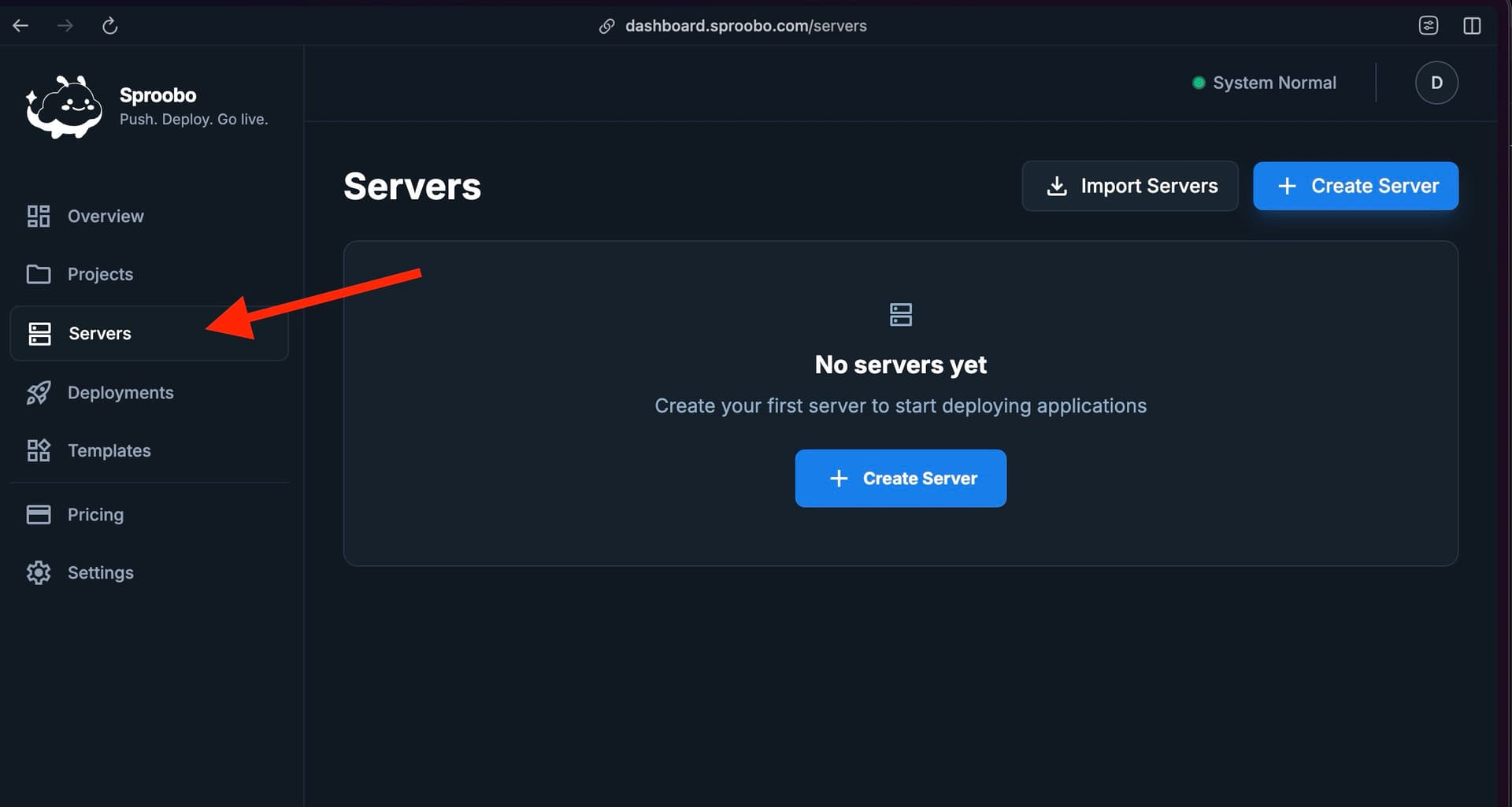
Navigate to the Servers page from your project dashboard. - 2
Create Server
Click the "Create Server" or "Provision Server" button. This will open the server provisioning wizard. - 3
Choose Location
Select the Hetzner datacenter location closest to your users:- Falkenstein (Germany): Central Europe
- Nuremberg (Germany): Central Europe
- Hillsboro (USA): West Coast USA
- Ashburn (USA): East Coast USA
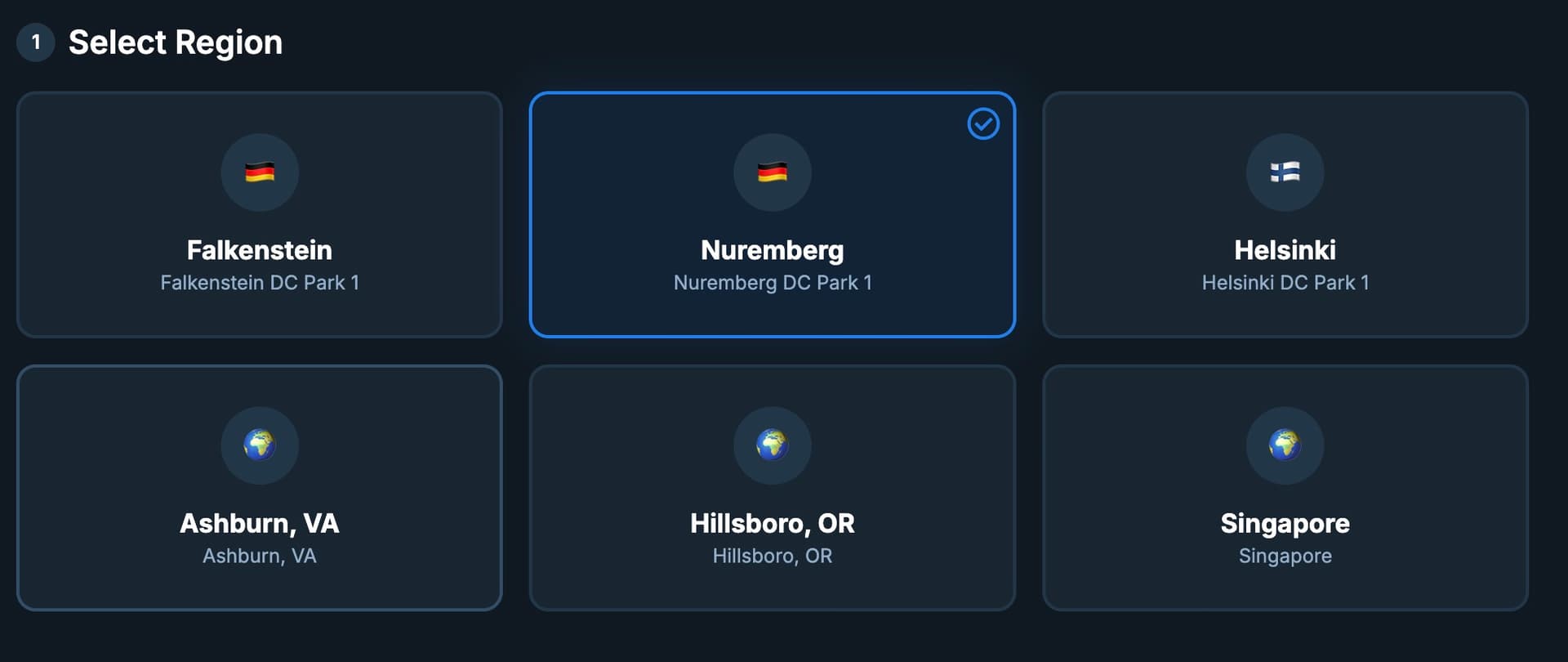
Choose the datacenter location closest to your users. - 4
Choose Server Type
Select the server type that fits your needs: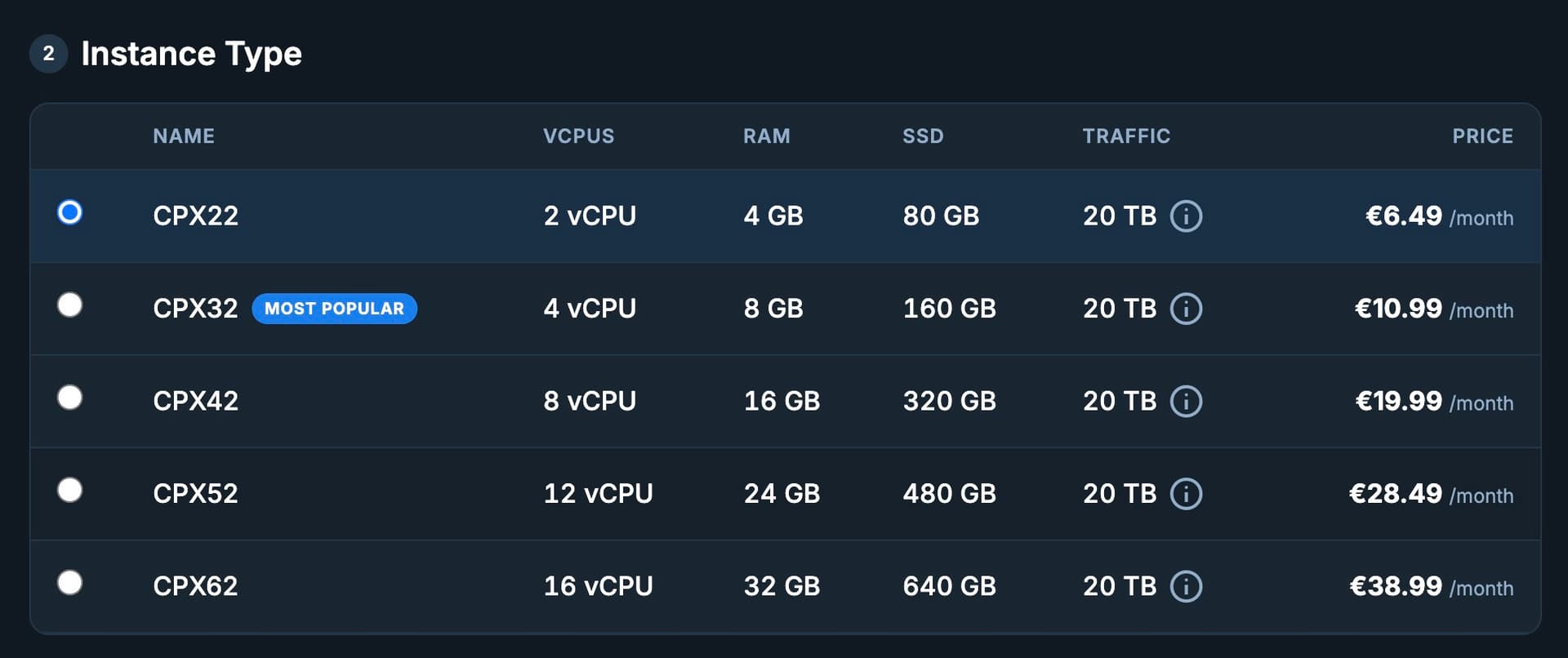
Choose the server type that matches your application requirements. - 7
Provision Server
Review your configuration and click "Create Server". Sproobo will:- Create the server in Hetzner Cloud
- Install Docker and Docker Compose
- Configure the firewall
- Set up monitoring and health checks
- Make the server ready for deployments
What Happens During Provisioning
When you provision a server, Sproobo automatically:
Automatic Setup
- Server Creation: Instantiates the Hetzner Cloud server
- Docker Installation: Installs Docker and Docker Compose
- Firewall Configuration: Sets up secure firewall rules (ports 80, 443)
- Monitoring Setup: Configures health checks and metrics collection
- SSL Preparation: Prepares server for automatic SSL certificates
Server Status
Your server will progress through these states:
- Provisioning - Creating the server in Hetzner Cloud
- Bootstrapping - Installing Docker and configuring the server
- Ready - Server is ready for deployments
- Active - Server is running with deployments
Next Steps
Once your server is ready: